
Download AutoSizer – Free Windows Window Manager Tool for Optimal Screen Layouts
AutoSizer is a lightweight, free Windows utility that helps users optimize the size and position of active windows with precision and ease. Designed for users who frequently multitask across multiple applications, AutoSizer streamlines window management by allowing quick resizing and repositioning of open windows with customizable hotkeys. Whether you're working on a dual-monitor setup, managing spreadsheets, coding, or browsing the web, this tool enhances productivity by eliminating the need for manual dragging and resizing.
Since its release in 2008, AutoSizer has remained a reliable favorite among power users and casual computer enthusiasts alike. With over 15,000 downloads since 2006, it continues to be a trusted choice for efficient window organization. The software is compatible with older Windows versions, including Windows 98, making it accessible to users with legacy systems.
Despite its age, AutoSizer remains functional, secure, and lightweight—taking up minimal system resources. Its intuitive interface and straightforward setup make it ideal for users of all skill levels. Whether you're looking to improve workflow efficiency or simply want a cleaner desktop, AutoSizer delivers a simple yet powerful solution.
Download AutoSizer today and experience a smarter way to manage your screen space.
Key Features of AutoSizer: Smart Window Management Made Simple
AutoSizer stands out in the crowded category of Windows utilities thanks to its streamlined, no-frills approach to window management. One of its most powerful features is the ability to resize and reposition active windows using customizable keyboard shortcuts. This eliminates the need to manually drag window borders, which can be time-consuming and imprecise. With just a few keystrokes, users can snap windows to the left, right, top, bottom, or center of the screen—perfect for creating multi-pane layouts ideal for coding, writing, or data analysis.
Another standout feature is its support for multiple monitor setups. AutoSizer allows users to apply window resizing rules across different displays, ensuring consistent layout behavior whether you're working on a laptop or a dual-screen desktop. The tool also remembers your preferred window configurations, so every time you launch your applications, they appear exactly where you want them. This is particularly useful for professionals who rely on specific screen arrangements for their workflow.
AutoSizer is designed with minimal system impact in mind. It runs quietly in the background, consuming negligible CPU and RAM, making it suitable even for older machines. The software also includes a simple configuration panel where users can define custom hotkeys, set default window sizes, and adjust snapping behavior.
For those who prefer automation, AutoSizer can be set to apply rules automatically when certain applications are launched. This level of customization ensures that the tool adapts to your habits rather than forcing you to adapt to it. With these features, AutoSizer proves that simplicity and functionality can go hand in hand.
How to Install and Use AutoSizer for Maximum Efficiency
Installing AutoSizer is a straightforward process, especially for users familiar with legacy Windows software. Since it’s a portable application, you don’t need to go through a complex setup wizard. Simply download the installer file from a trusted source, run it, and follow the on-screen prompts. The installation typically takes less than a minute, and the program will be ready to use immediately after. No administrative rights are required, making it ideal for use on shared or restricted computers.
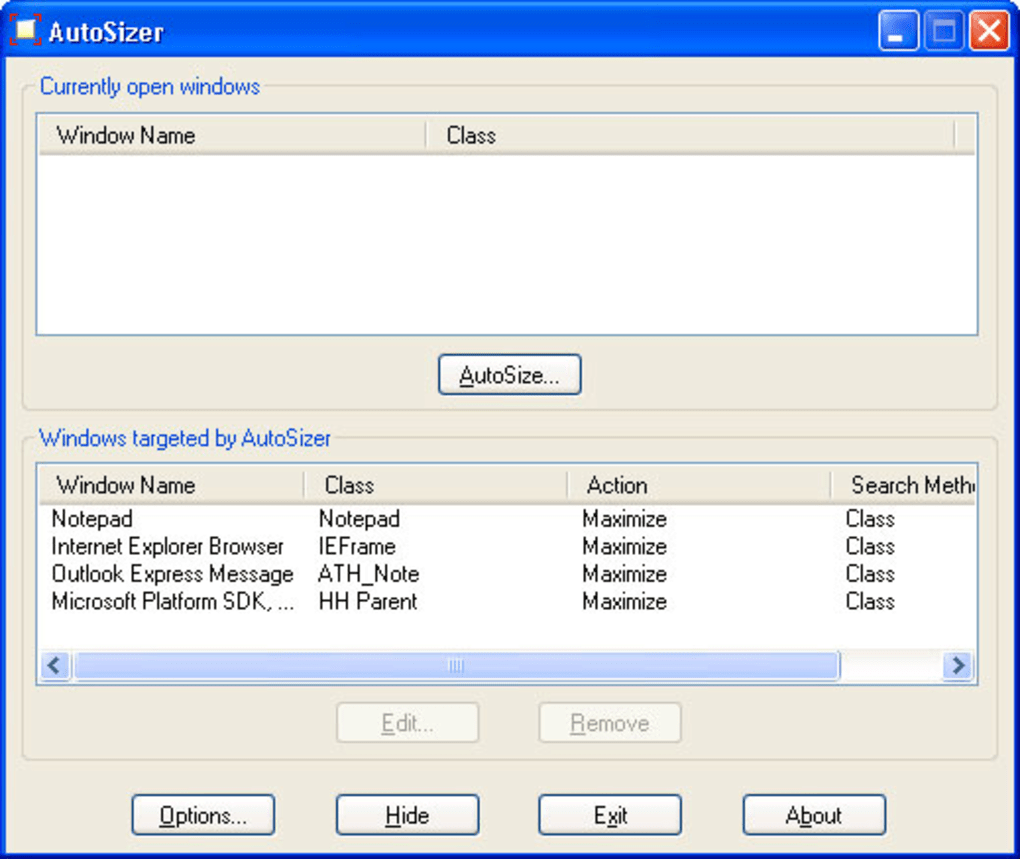
Once installed, AutoSizer runs in the background and can be accessed via the system tray. To begin using it, open the configuration menu by right-clicking the AutoSizer icon in the taskbar. From here, you can customize key bindings—such as Ctrl+Shift+Left for snapping a window to the left half of the screen. The default hotkeys are intuitive and easy to remember, but you can easily modify them to suit your preferences. For example, if you’re used to Win+Left from Windows 10’s native snapping, you can reassign the same shortcut for consistency.
To use the tool, simply activate any open window and press your chosen hotkey. The window will instantly resize and reposition according to your preset rules. You can also use the mouse to manually drag windows to a desired area, and AutoSizer will snap them into place automatically.
For advanced users, the configuration panel allows for rule-based automation—such as setting specific window sizes for applications like Microsoft Excel or Visual Studio. This means every time you open Excel, it automatically appears in the right half of your screen, ready for immediate use. Over time, AutoSizer learns your workflow and helps you work faster with fewer clicks.
Compatibility and System Requirements
AutoSizer is specifically designed for Windows operating systems, with full compatibility dating back to Windows 98. This makes it one of the few window management tools still functional on older hardware and legacy systems. Whether you’re using Windows XP, Vista, 7, 8, or even Windows 10 (in compatibility mode), AutoSizer performs reliably without crashing or causing system instability. This broad compatibility is a major advantage for users who haven’t upgraded their systems due to budget, hardware limitations, or software dependencies.
Despite its long-standing support for older systems, AutoSizer remains lightweight and efficient. It requires minimal disk space—typically less than 2 MB—making it ideal for low-storage devices like netbooks or older laptops. The software doesn’t install any additional drivers or services, reducing the risk of conflicts with other programs. It’s also free from ads, malware, or bundled software, ensuring a secure download experience.
While AutoSizer does not currently support Mac, Android, or iOS, its focus on Windows makes it a niche but powerful tool for desktop users. The fact that it’s still available and functional in 2024 speaks volumes about its stability and design philosophy. For users who value reliability over flashy features, AutoSizer delivers exactly what it promises: a simple, secure, and effective way to manage windows. If you’re using a Windows machine and want to boost productivity without upgrading your hardware, this tool is a smart, cost-free choice.
Pros and Cons of Using AutoSizer
- Pros:
- Free and open for download with no hidden costs
- Extremely lightweight—minimal impact on system performance
- Supports older Windows versions, including Windows 98
- Customizable hotkeys for quick window snapping
- Works seamlessly on multi-monitor setups
- Runs in the background without interfering with other apps
- Simple, intuitive interface suitable for beginners
- Automatically remembers window layouts for consistent workflows
- Cons:
- No official updates since 2008—may lack support for newer Windows features
- Not available for Mac, Android, or iOS platforms
- Limited visual customization options
- No built-in preview of window positions before applying
- Interface is dated and lacks modern design elements
Frequently Asked Questions (FAQ)
- Is AutoSizer free to download and use?
- Yes, AutoSizer is completely free to download and use. There are no trial periods, subscription fees, or in-app purchases. The software is open for public use with no restrictions.
- Does AutoSizer work on Windows 10 and Windows 11?
- Yes, AutoSizer works on Windows 10 and Windows 11, though it may require running in compatibility mode for older versions. Many users report successful operation on modern systems without issues.
- Can I customize the hotkeys in AutoSizer?
- Absolutely. AutoSizer allows users to fully customize keyboard shortcuts for window snapping. You can assign your preferred keys for left, right, top, bottom, and center layouts.
- Is AutoSizer safe to download?
- Yes, AutoSizer is considered safe to download from reputable sources. It is free from malware, adware, and bundled software. Always download from official or trusted third-party websites to ensure security.
- Why hasn’t AutoSizer been updated since 2008?
- The developer has not released updates since 2008, likely due to the tool being stable and functional as-is. Its lightweight design and focus on core functionality mean it doesn’t require frequent updates. However, this also means it may not support newer Windows features like dynamic DPI scaling.
Final Verdict: A Timeless Tool for Windows Power Users
AutoSizer may be over a decade old, but its core functionality remains highly relevant for users who value efficiency and simplicity. In a world of bloated software and complex interfaces, AutoSizer stands out as a refreshing reminder that great tools don’t need to be flashy. It delivers on its promise: fast, reliable window management with minimal overhead. Whether you’re using an old laptop or a modern desktop, this lightweight utility can significantly improve your workflow.
While it lacks modern features and hasn’t been updated in years, its stability, compatibility, and zero cost make it a compelling choice. For users on legacy systems or those who prefer minimalism in their tools, AutoSizer is a must-have. It’s not just a download—it’s a productivity upgrade.
Ready to reclaim your screen space? Download AutoSizer now for free and start organizing your windows like a pro.







